
StageView
Booking System
A complete guide for staff and managers to navigate, manage, and optimise the cinema booking experience.
Introduction
This is the user manual to the StageView Booking System. It helps staff and managers in the cinema to manage revenue and screen bookings efficiently.
Main Menu
The main screen within the system — helps users navigate to screens and book movies with ease.
Revenue Table
Helps managers, staff and owners see how much money has been made per screen in real time.
Film Sheets
Individual sheets for booking customers into their seats and managing the seating plan.
Summary Sheet
Shows total income across all screens and indicates if any screen has sold out.
15% Summary Sheet
Demonstrates the impact on earnings when a 15% discount is applied across all seats.
Profit Bar Chart
A visual bar chart showing how much the cinema has made per screen at a glance.
Navigating the Spreadsheet
The booking system has been designed with both staff and customers in mind, making it particularly easy to move around. This section explains how users can access different parts of the spreadsheet, locate concert sheets, and understand where to find key information such as discounts and summaries.
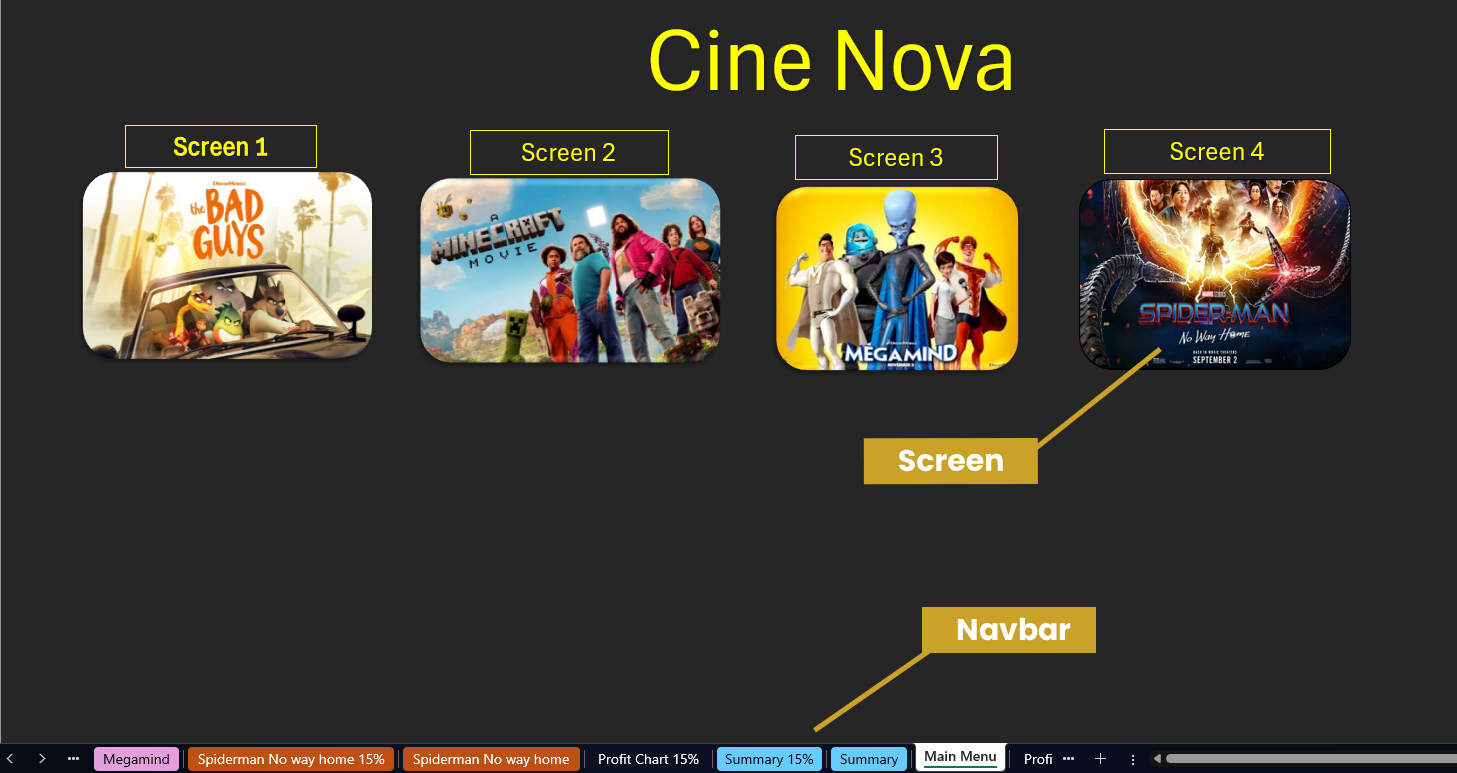
The main menu showing available films and navigation controls.
Navigating the Main Menu
The main menu shows the movies available at the time of booking. To open a screen, simply click the movie's poster and it will redirect to that screen's booking page.
Switching Between Sheets
To switch between sheets, click the tab you want using the navigation bar at the bottom of the spreadsheet. This lets you move between the Main Menu, individual film sheets, discount sheets, and the Summary sheet.
What Each Seating Tier Means
The seating tiers help customers choose a seat based on their budget and preferred viewing experience. Each seating plan is split into three sections:
General Admission
Middle section of the seating plan, offering a standing view of the stage at an affordable price.
Upper Tiers
A slightly higher viewing angle at just £25 less.
VIP
The premium tier. Best viewing angle and maximum comfort — ideal for the ultimate concert experience.
Understanding the Calculation Table
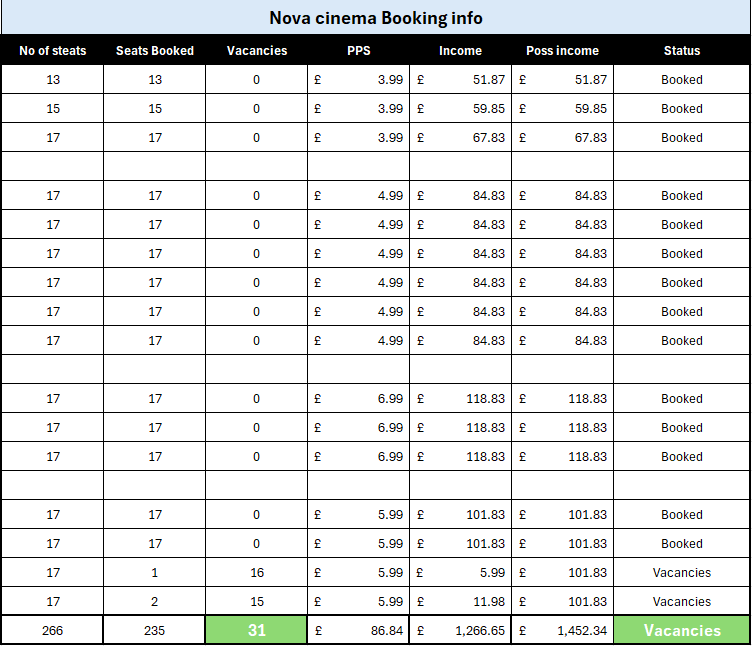
The calculation table sits alongside the seat booking section. Here's what each column means:
The total number of seats in a row.
The number of seats currently booked in a row.
How many seats are not yet booked in a row.
Price Per Seat — the cost for each tier in that row.
The amount of income made so far from that row.
The maximum possible income that row can generate.
If a row is fully booked it shows "Booked", otherwise "Vacancies".
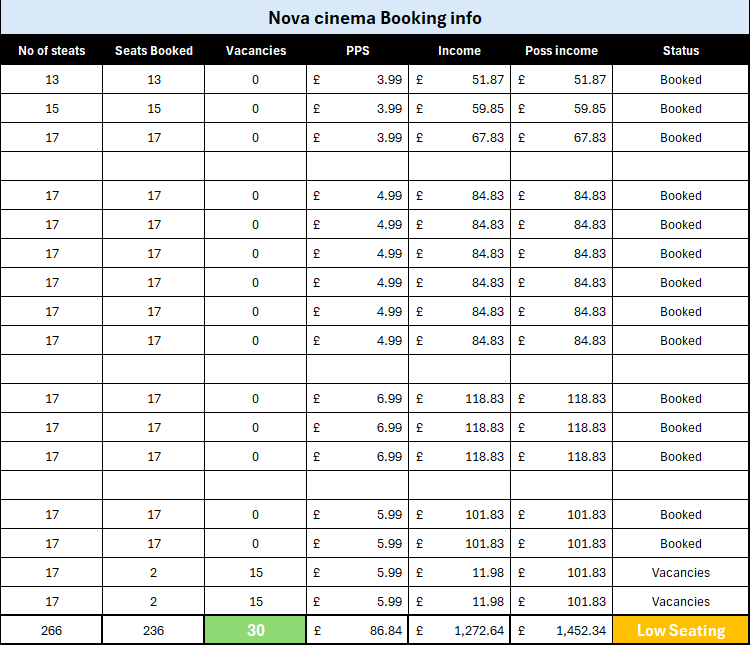
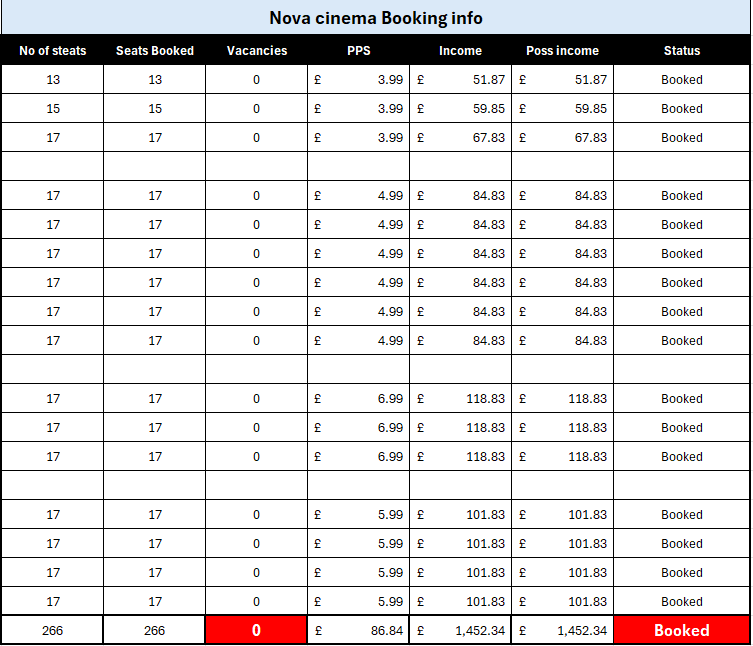
Shows the calculated total. At ≤30 seats shows "Low Availability", at 0 seats shows "Booked".
31+ seats available
30 or fewer seats remaining
No seats remaining
Understanding Film Sheet Layout
Each film sheet has been designed to be easy to use and understand. This section covers the layout including the seating plan, booking instructions, and key information.
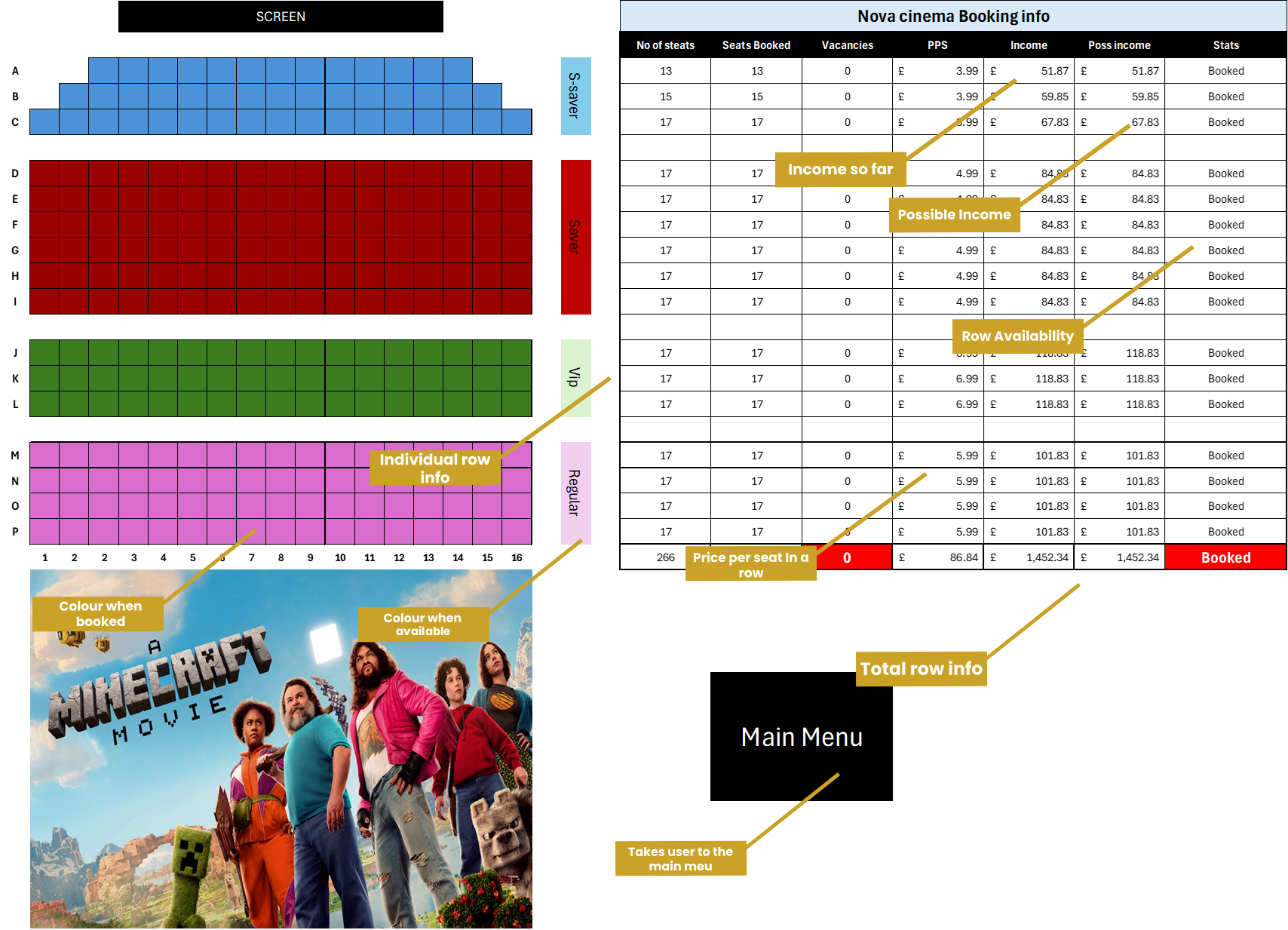
Annotated view of a film sheet showing all key areas.
👥 Customer View
Customers see the booking screen with seats displayed. Booked seats appear darker; available seats are a lighter shade. A button returns them to the main menu.
🎛️ Staff View
Staff see a table with booking data: income per row, possible income, and seat availability. The overall total and a screen availability indicator appear at the bottom.
How to Book a Seat
The seat booking system has been designed so customers can easily understand how to book. There are clear instructions within the booking screen.
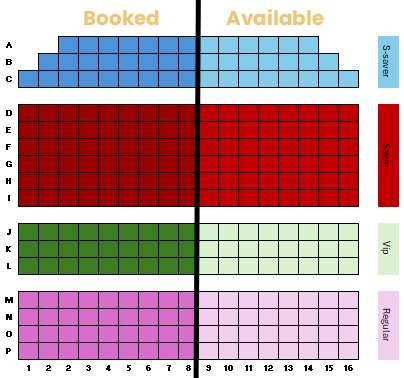
The seating layout showing available and booked seats.
What Happens to the Table When a Seat Is Booked?
When a customer books a seat, the table automatically updates to show the new income total for that row. If it is the last seat in the screen, the total availability will update to "Booked".
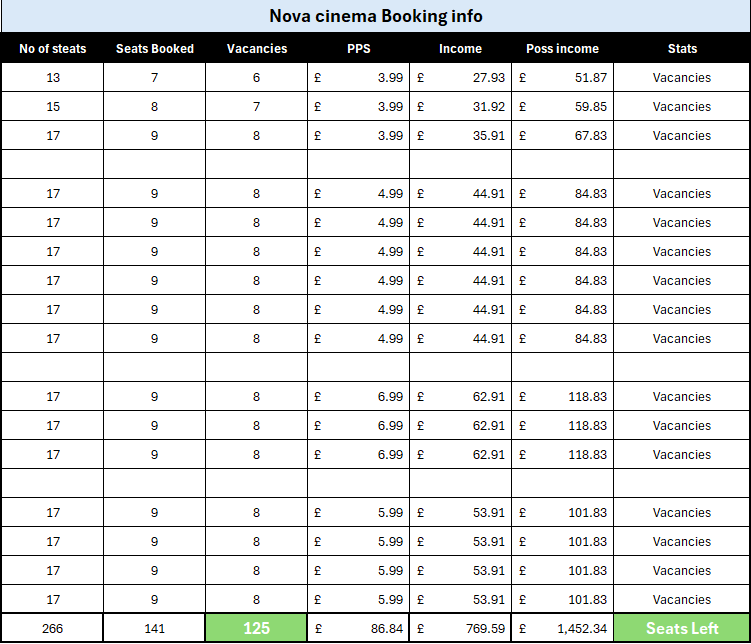
The calculation table updates in real-time as seats are booked.
How to Cancel or Edit a Booking
Cancelling and editing bookings are key for customer satisfaction. This section covers how to do this and what it affects on the finance side.
Demonstration of cancelling a booking by pressing Backspace.
Finance Impact of a Cancellation
When a seat is cancelled, the price is deducted from the calculated total. If the screen was fully booked, the row availability changes from "Booked" to "Vacancies" and the overall screen availability updates accordingly.
The table updating live as a booking is cancelled from a full screen.
Using the "15%" Sheets
The 15% summary shows what happens to earnings when a discount has been applied. The seating and booking process is identical to normal screens — the only difference is in the table.
The discounted table in action — prices are 15% lower across all tiers.
Key Differences in the 15% Sheet
- All seat prices are reduced by 15% (e.g. VIP drops from £6.99 to £6.52).
- At 30 seats remaining the status changes from "Seats Left" to "Low Availability".
- At 0 seats the status changes to "Booked".
Checking the Overall Summary
The overall summary lets you quickly see availability across all screens and the total earnings from all of them combined.
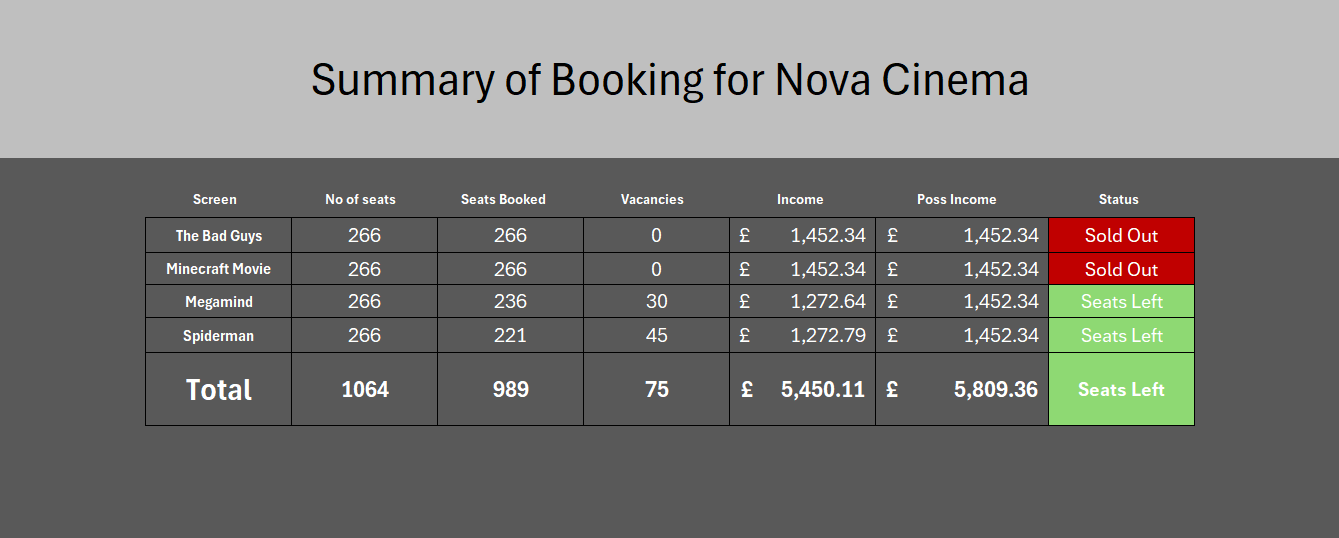
The summary sheet showing all screens, availability, and total earnings.
In the example above, you can see that seats remain in Megamind and Bad Guys. Across all 4 screens, the cinema has earned £5,450.11 out of a possible £5,809.36.
Using the 15% Summary Sheet
The 15% summary is identical to the standard summary, with one exception: when 133 seats or fewer remain per screen, availability changes from "Seats Left" to "Low Seating", and at 532 total seats the overall status changes to "Low Seats".
The 15% summary sheet demonstrating Low Seating thresholds.
Troubleshooting
Restrictions are in place to prevent booking mistakes. This section covers the errors you may encounter and how to resolve them quickly.
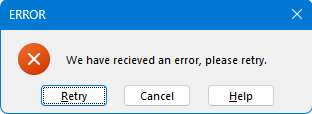
The validation error shown when an incorrect key is pressed during booking.
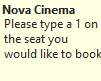
The tooltip shown when hovering over a seat, reminding users to press 1.
How to Fix the Error
Click Retry or Cancel, then delete any text in the seat's cell. Finally, press 1 to book the seat correctly.
Tips for Best Practice
To maintain data quality and system integrity, we recommend following these practices at all times:
Don't Edit Formulas
Formulas are specifically designed for this system's calculations. Editing them may break links or cause incorrect results across the entire sheet.
Use the Main Menu
Always use the main menu to navigate between screens. This ensures the correct screen is selected and prevents navigation errors.
Save Regularly
Saving often prevents data loss in case of crashes, power cuts, or accidental changes. Always ensure your latest bookings are backed up.
FAQs
Answers to the most commonly asked questions about the StageView Booking System.
The formulas are carefully designed to calculate results automatically. Changing them could break links between sheets or cause errors in your revenue data.
Always use the main menu to move between sections. It ensures everything loads correctly and prevents broken links or accidentally opening the wrong screen.
Saving often prevents data loss if your browser or system crashes. It keeps your most recent changes safe and recoverable.
Need Extra Support?
Can't find the answer you're looking for? Send us a message and we'll get back to you as soon as possible.